CSS Cross-Document View Transitions Practical Guide — Implementing Smooth Page Transitions in MPAs Without SPA Using `@view-transition` and `view-transition-name`
When a user builds a service with Next.js or Astro, the same dilemma always comes up. The moment a user clicks a product card and the browser loads a new page — that white flash — giving up the MPA architecture means losing too much in terms of SSR performance and SEO, but leaving it as-is is just too jarring.
CSS View Transitions API Level 2 now directly supports cross-document (MPA) navigation, providing a standard solution to this problem.
Before diving in, it's worth clarifying the scope.
- What's possible with pure CSS, no JavaScript: Full-page crossfades, shared element transitions using
view-transition-name - What requires a small amount of JavaScript: Directional forward/back slides (requires comparing browser history indices)
- Framework context to be aware of: Next.js App Router and SvelteKit use client-side navigation by default. CSS
@view-transitiononly fires during actual cross-document navigation (full page loads), so its applicability in these two frameworks is limited. Astro is the most natural fit, since it's MPA by default.
This article covers how the @view-transition at-rule and view-transition-name actually work, how to use them in Astro, SvelteKit, and Next.js App Router respectively, and the pitfalls you'll commonly encounter in practice.
Core Concepts
How the Browser Handles a Transition
The essence of Cross-Document View Transitions is that the browser takes two snapshots and interpolates between them. Unlike the SPA approach of calling document.startViewTransition() directly, in MPA you declare @view-transition and the browser intercepts navigation and handles it automatically.
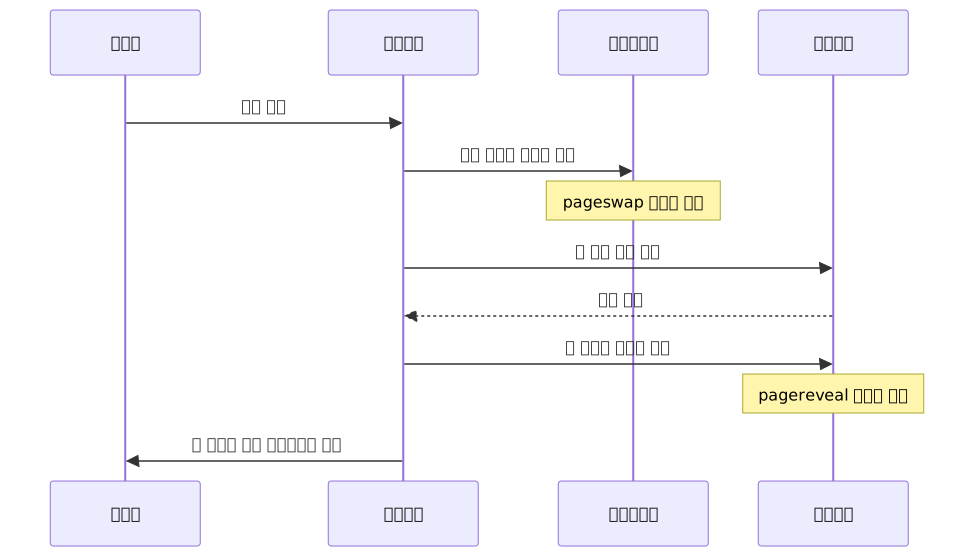
Four steps: snapshot the current page → load the new document → snapshot the new page → animate between the two snapshots. pageswap and pagereveal are important when implementing directional transitions, which we'll cover in detail later.
Opting In with @view-transition
For transitions to work, both documents must declare @view-transition. If only one side declares it, no transition occurs.
/* Add once to the global stylesheet */
@view-transition {
  navigation: auto;
}
navigation: auto means transitions are automatically activated for navigations triggered by user gestures (link clicks, form submissions, back/forward buttons). The default behavior is a full-page crossfade.
Here's a summary of the conditions for it to work:
| Condition | Description |
|---|---|
| Same origin | Only supports navigation within the same domain; cross-subdomain moves are not supported |
| Both sides declare | Both the source page and destination page require @view-transition |
| User gesture | Link click, form submission, browser back/forward button |
| 4-second timeout | The new page must finish rendering within 4 seconds |
Creating Shared Element Transitions with view-transition-name
A full-page crossfade is nice enough, but the truly powerful feature is Shared Element Transitions. When two pages have elements with the same name, the browser automatically interpolates their position, size, and aspect ratio, creating a "flying" effect where one element morphs into the other.
/* List page: product thumbnail */
.product-thumbnail {
  view-transition-name: product-hero;
}

/* Detail page: hero image */
.product-hero-image {
  view-transition-name: product-hero;
}
Just match the names and the browser handles the rest. There are two constraints, however.
Name uniqueness: If two or more elements on the same page share the same view-transition-name value, the browser cancels the entire transition without an error. It fails silently, so you need to be especially careful in dynamic lists.
Reserved values: none cannot be used (view-transition-name: none means the element is excluded from the transition).
Understanding the Pseudo-Element Structure
While a transition is running, the browser generates a pseudo-element tree like this. Knowing this structure lets you control things precisely with CSS.

You can control each node independently — for example, by only animating ::view-transition-old(root), the old page fades out while the new page appears immediately.
Practical Application
1. Full Crossfade — The Fastest Start
/* globals.css or shared layout styles */
@view-transition {
  navigation: auto;
}

/* Accessibility: respect reduced-motion preference */
@media (prefers-reduced-motion: reduce) {
  ::view-transition-old(root),
  ::view-transition-new(root) {
    animation: none;
  }
}
It's better to include the prefers-reduced-motion fallback from the start. Slide or scale transitions can be uncomfortable for motion-sensitive users, and some users prefer to disable even the default crossfade with this query, so it's a good habit to include it from the beginning.
2. e-Commerce Product List → Detail Page Shared Transition
The most common mistake in dynamically generated card lists is name collisions. If you put view-transition-name directly on a class, names will duplicate when there are multiple cards. You need to inject a unique ID for each card from the server.
<!-- List page -->
<div class="product-grid">
  <a href="/products/123">
    <img
      src="/products/123.jpg"
      alt="Product A"
      class="product-thumb"
      style="view-transition-name: product-image-123"
    >
  </a>
  <a href="/products/456">
    <img
      src="/products/456.jpg"
      alt="Product B"
      class="product-thumb"
      style="view-transition-name: product-image-456"
    >
  </a>
</div><!-- Detail page /products/123 -->
<img
src="/products/123.jpg"
alt="Product A"
class="hero-image"
style="view-transition-name: product-image-123"
>/* Prevent aspect ratio distortion */
/* Apply to all named elements via wildcard */
::view-transition-old(*),
::view-transition-new(*) {
object-fit: cover;
}The object-fit: cover handling is easy to miss but important. The pseudo-element default is fill, so when a thumbnail (1:1 ratio) transitions to a detail page hero image (16:9 ratio), the image gets squashed. Here we apply it to all named elements via the wildcard *, but if you need different animations per element, you can use view-transition-class, covered later.
3. Directional Slide Transition — Using pageswap and pagereveal
Sliding in opposite directions for forward/back navigation feels much more natural. This requires a small amount of JavaScript.
Why JavaScript is needed: The :active-view-transition-type() pseudo-class only works when the transition has a "type" tagged to it. Since the browser doesn't auto-tag direction, you must call e.viewTransition.types.add() yourself in the pagereveal (destination page) or pageswap (source page) event.
Note: The API for specifying directional types in cross-document MPA transitions is
viewTransition.typeson thepageswap/pagerevealevents.document.startViewTransition()is the same-document SPA transition API and does not work here.
Handling it in the pagereveal event of the destination page is the simplest approach.
// Add to the shared script on each page
window.addEventListener('pagereveal', (e) => {
  if (!e.viewTransition) return;

  const activation = navigation.activation;
  const isBack =
    activation?.navigationType === 'traverse' &&
    (activation?.from?.index ?? 0) > (activation?.entry?.index ?? 0);

  e.viewTransition.types.add(isBack ? 'back' : 'forward');
});
Direction is determined by comparing navigation.activation.from.index (previous page) with navigation.activation.entry.index (current page). You must use optional chaining since activation can be null.
You can also handle it on the source page.
// Handling on the source page (pageswap event)
window.addEventListener('pageswap', (e) => {
  if (!e.viewTransition) return;

  const isBack =
    e.activation?.navigationType === 'traverse' &&
    (e.activation?.from?.index ?? 0) > (e.activation?.entry?.index ?? 0);

  e.viewTransition.types.add(isBack ? 'back' : 'forward');
});
In pageswap, you use the e.activation property on the event object itself. Types set in either event are shared across the entire transition. Whichever side you handle it on, :active-view-transition-type() responds correctly.
CSS specifies animations per type.
@keyframes slide-out-left {
  to { transform: translateX(-100%); }
}
@keyframes slide-in-right {
  from { transform: translateX(100%); }
}
@keyframes slide-out-right {
  to { transform: translateX(100%); }
}
@keyframes slide-in-left {
  from { transform: translateX(-100%); }
}

:active-view-transition-type(forward) {
  &::view-transition-old(root) {
    animation: slide-out-left 0.3s ease;
  }
  &::view-transition-new(root) {
    animation: slide-in-right 0.3s ease;
  }
}

:active-view-transition-type(back) {
  &::view-transition-old(root) {
    animation: slide-out-right 0.3s ease;
  }
  &::view-transition-new(root) {
    animation: slide-in-left 0.3s ease;
  }
}

@media (prefers-reduced-motion: reduce) {
  ::view-transition-old(root),
  ::view-transition-new(root) {
    animation: none;
  }
}
4. Native Transitions in Astro (without <ClientRouter />)
Astro is MPA by default, making it the environment where CSS @view-transition works most cleanly. <ClientRouter /> enables Astro's own SPA mode, and using it alongside native cross-document transitions can cause conflicts.
---
// Layout.astro
---
<html lang="ko">
  <head>
    <meta charset="utf-8" />
    <style>
      @view-transition {
        navigation: auto;
      }

      @media (prefers-reduced-motion: reduce) {
        ::view-transition-old(root),
        ::view-transition-new(root) {
          animation: none;
        }
      }
    </style>
  </head>
  <body>
    <slot />
  </body>
</html>
For shared element transitions, inject names directly via inline styles in each page component.
---
// pages/products/[id].astro
const { product } = Astro.props;
---
<img
  src={product.heroImage}
  alt={product.name}
  style={`view-transition-name: product-image-${product.id}`}
/>
Astro's transition:name directive depends on <ClientRouter />, so in native mode you need to apply CSS view-transition-name directly.
5. Using in SvelteKit
SvelteKit uses client-side navigation (SPA mode) by default. In this case, you use the document.startViewTransition() API together with the onNavigate hook, not CSS @view-transition.
SPA mode (default configuration)
<!-- src/routes/+layout.svelte -->
<script>
  import { onNavigate } from '$app/navigation';

  onNavigate((navigation) => {
    if (!document.startViewTransition) return;

    return new Promise((resolve) => {
      document.startViewTransition(async () => {
        resolve();
        await navigation.complete;
      });
    });
  });
</script>

<slot />

<style>
  @keyframes fade-in {
    from { opacity: 0; }
  }
  @keyframes fade-out {
    to { opacity: 0; }
  }

  :root::view-transition-old(root) {
    animation: 200ms ease fade-out;
  }
  :root::view-transition-new(root) {
    animation: 200ms ease fade-in;
  }

  @media (prefers-reduced-motion: reduce) {
    :root::view-transition-old(root),
    :root::view-transition-new(root) {
      animation: none;
    }
  }
</style>
This approach uses SvelteKit's client router as-is, so you get transition effects while retaining SSR benefits. Practically speaking, this SPA mode approach is the most natural choice in SvelteKit.
MPA mode (disabling client-side JS)
Declaring export const csr = false in a specific layout, or adding the data-sveltekit-reload attribute to links, triggers a full page load, in which case CSS @view-transition will work.
<!-- src/routes/+layout.svelte (MPA mode) -->
<style>
  @view-transition {
    navigation: auto;
  }
</style>
However, csr = false means losing SvelteKit's core features such as client state management and reactive updates. Unless it's a special case, the SPA mode onNavigate approach above is recommended.
6. Using in Next.js App Router
To be frank, the practical scope of CSS @view-transition in the Next.js App Router environment is very limited. The App Router's <Link> component performs client-side navigation, so no cross-document transition occurs.
Cases where @view-transition does fire are limited to:
- The initial page load when a user types a URL directly or enters from an external source
- Cases where
<a>tags are used directly to trigger a full page load - Cases where hard navigation occurs, such as server-side form submissions
If you need transition effects for these edge cases, the CSS below is meaningful on its own. However, you must be clearly aware that it does not apply to normal <Link> navigation.
/* app/globals.css */
/* Note: does not apply to navigation via the <Link> component */
/* Only fires when a full page load occurs */
@view-transition {
  navigation: auto;
}

@media (prefers-reduced-motion: reduce) {
  ::view-transition-old(root),
  ::view-transition-new(root) {
    animation: none;
  }
}
The React team is experimenting with a <ViewTransition> component, but full integration with the App Router's client router will take more time. If you need transition effects in App Router right now, it's worth looking into using the swup library with its View Transitions plugin.
7. Handling Many Elements with view-transition-class (Chrome 125+, Safari 18.2+)
Writing a separate pseudo-element selector for each name in a list of dozens of product cards causes CSS to explode. view-transition-class is a grouping tool that solves this problem.
/* Each card keeps its unique name, but adds a shared class */
.card {
  view-transition-class: card-item;
  /* view-transition-name is injected inline from the server: product-image-{id} */
}

/* Select using wildcard name + class form */
/* *.card-item: any transition element with the card-item class, regardless of name */
::view-transition-old(*.card-item),
::view-transition-new(*.card-item) {
  animation-duration: 0.25s;
  animation-timing-function: ease-out;
  object-fit: cover;
}
view-transition-class does not replace names. Each card still needs a unique view-transition-name; the class is a grouping mechanism for applying shared styles to elements with different names.
One note on selector syntax: the ::view-transition-old(*.card-item) form (wildcard name * + class) is the syntax intended by the Level 2 spec. The form using only the class, ::view-transition-old(.card-item), may be handled differently across browsers, so use the wildcard form.
Browser Support and Trade-offs
Browser Support
| Browser | Same-Document | Cross-Document |
|---|---|---|
| Chrome | 111+ | 126+ |
| Edge | 111+ | 126+ |
| Safari | 18+ | 18.2+ |
| Firefox | In progress | In progress |
Firefox's exact support version is changing rapidly. For the most accurate and up-to-date numbers, check the caniuse — View Transitions API and MDN View Transition API browser compatibility tables directly.
Progressive enhancement is the default behavior, so unsupported browsers automatically fall back to regular page navigation. The adoption risk is low.
Trade-offs at a Glance
| Category | Item | Details |
|---|---|---|
| Pro | Minimal code | Basic crossfade is complete with a single CSS at-rule |
| Pro | Progressive enhancement | Automatically falls back to regular page navigation in unsupported browsers |
| Pro | Browser optimization | GPU-composited, outperforms JavaScript implementations |
| Pro | Shared element transitions | Browser automatically handles position and size interpolation |
| Con | 4-second timeout | Transitions can be cancelled on pages with slow server responses |
| Con | Enforced name uniqueness | Duplicate names cancel the entire transition; fails silently |
| Con | Same-origin restriction | Does not apply to cross-subdomain navigation or external links |
| Con | Memory cost | A pair of snapshot images is kept in memory for each named element |
Common Mistakes in Practice
① Duplicate view-transition-name values
<!-- Wrong: all cards share the same name → entire transition cancelled -->
<img class="card-img" src="a.jpg"> <!-- CSS: view-transition-name: card; -->
<img class="card-img" src="b.jpg"> <!-- CSS: view-transition-name: card; -->

<!-- Correct: inject a unique ID during server rendering -->
<img style="view-transition-name: card-42" src="a.jpg">
<img style="view-transition-name: card-99" src="b.jpg">
It's a silent failure — the transition just doesn't happen, with no error. If no transition runs in Chrome DevTools Animations panel, check for name collisions first.
② Image distortion from omitting object-fit
/* Must add when transitioning between elements with different aspect ratios */
::view-transition-old(*),
::view-transition-new(*) {
  object-fit: cover; /* The default fill causes distortion */
}
③ Applying shared element transitions to slow pages
If a page with a 2–3 second server response has shared element transitions applied, they'll be cancelled by the 4-second timeout. For slow data pages, using only crossfades or quickly rendering a loading skeleton to reduce TTFB is the practical approach.
④ Not handling prefers-reduced-motion
@media (prefers-reduced-motion: reduce) {
  ::view-transition-old(root),
  ::view-transition-new(root) {
    animation: none;
  }
}
Leaving this out for transitions with motion like slides or scales creates accessibility issues.
⑤ Attempting to use @view-transition in non-MPA environments
@view-transition { navigation: auto; } only works for actual cross-document navigation. In environments that use client-side navigation — like Next.js <Link> or SvelteKit's default router — this CSS has no effect whatsoever.
Decision Guide by Framework

Wrapping Up
If you want to get started right now, here's the recommended order.
Step 1 — Add @view-transition { navigation: auto; } and the prefers-reduced-motion fallback to your global CSS. If you're in an environment where real MPA navigation occurs (Astro, or a hard-navigation scenario), the crossfade will work immediately on deploy.
Step 2 — Try shared element transitions on one key element in the list → detail page pattern. Watch out for name collisions, and add object-fit: cover.
Step 3 — Check the transition timeline in Chrome DevTools Animations panel. If you need directional slides, tag types in the pagereveal event and extend your CSS with :active-view-transition-type().
The basic crossfade is pure CSS. Shared element transitions need just one name. Directional transitions take a small event handler. See for yourself how page navigation becomes smooth while keeping your MPA intact.
References
- Cross-document view transitions for multi-page applications | Chrome for Developers
- View Transition API - MDN Web Docs
- @view-transition CSS at-rule - MDN
- Using the View Transition API - MDN
- CSS View Transitions Module Level 2 - W3C Working Draft
- What's new in view transitions (2025 update) | Chrome for Developers
- Cross-Document View Transitions: The Gotchas Nobody Mentions | CSS-Tricks
- Gotchas in Naming CSS View Transitions - Jim Nielsen's Blog
- View Transitions Supported in All Major Browsers | Bag of Tricks
- View transitions - Astro Docs
- ClientRouter or @view-transition: High-level Considerations | Bag of Tricks
- Dropping Astro's ClientRouter for web standards · Joost.blog
- cross-doc-explainer.md - WICG/view-transitions GitHub
- View transitions in Astro and SvelteKit - Pontus Horn
- View Transitions API | Can I use